Friday, January 26, 2007

How to Enable the root account on Mac OS X

We may, at some point of time, find a reason to enable the root account on our Mac. Well, we seldom need to log in as root. But still it is good to have total control on what does belong to us. To enable the root account, launch NetInfo Manager (Application -> Utilities -> NetInfo Manager) and authenticate yourself by clicking the lock icon at the bottom-left and entering your password. Select Security -> Enable Root User from the menu bar. If this is the first time you've done this, you'll be warned that the root password is currently blank and therefore you will be prompted to set one. Once you set the password for root user, click on the lock icon again to disallow any further changes, and close NetInfo Manager. The root account is now active. By following the same step you can also disable the root account.

Logging in as Root
During the initial logging process, we can log in as root just as we would log in as any other user. The only difference is that root won't appear in the list of users and their associated cute icons. Click on Other, enter root as the Name, and enter the password we assigned to the root account as Password.

Thursday, January 25, 2007

How to Mac OS X !
If you are a first time user to Mac OS X and do not know where to start...Here, let me help you by talking about some of the basic features of Mac OS X.


One month back I have successfully installed Mac OS X 10.4.7 on HP DV 6114TX laptop. Since then I've been using my dream OS. I've got used to the operating system now. At first it was a bit daunting, from using windows OS for years, and knowing my way around it pretty well.

Apple Mac OS has always fascinated me BUT I could never have it. But,
I'd seen a lot of Mac OS X on one of my colleagues PowerBook. I have heard that it doesn't crash a lot, it seldom gets affected by viruses, its pretty fast. And when I came to know that Apple's switch to Intel platform, and after reading about Maxuss' & JaSS' patches to help run OSX on any Intel machine I was quite excited about using it.

So I get Mac OS X 10.4.7 prepatched and get it running, the first thing that struck me was how quickly Mac OS X starts up. For me it takes as less as 15 seconds to completely boot into Mac OS.

The gorgeous Aqua user interface lets us control advanced timesaving technology without we hardly lifting a finger. Mac OS X wraps its powerful functionality in a user interface that’s both intuitive and gorgeous. As they say..."Looks great, makes you look great".

So, what makes Mac really winsome? Let us just go through some of the basic but extremely powerful & magnificent features. I bet at the end of this discussion, you will find yourself very much acquainted with this beautiful OS.

The Dock
So far I am probably used to the menu system of windows, having all my applications available from the start menu. Mac OS X doesn't have anything like that, it has got the dock at the bottom which helps you to quickly launch any program. We can add/remove as many applications to this as we want. We can obviously change its size, change how it behaves when we move our mouse over icons etc. No matter what we are doing the dock is always displayed. The dock is where our minimised windows and applications go as well. When we minimise a movie playing window, it goes to the dock and keeps on playing. The dock is one of the first thing which originated my interest for OS X. It is a lot cooler than the outdated windows task bar.

Finder
This is like opening My Documents / My computer, the pre defined folders are, Desktop, User Account (account name here), Movies, Music, Pictures, Documents. These folders are displayed in a frame on the left and we can add and delete them as we wish. At the top of this frame we can also access the Network folder (to access shared files on a network), and any other external storage devices, USB flash drive etc. There aren't really any major differences between this and My Documents on windows, although OSX does allow for more customisation of how our files and folders are displayed, adding colour to folders, backgrounds etc.

Spotlight
This is one of the best features of OS X, in the top right of the menu bar (this is where all our file, edit, view, format, help etc. menu's are). It changes obviously for each application, the battery meter and date/time are also displayed here. By clicking on the spotlight logo it allows us to type in whatever we are looking for, applications, photos, music, documents, files, folders etc.. As you type in additional letters, your search narrows and fewer results are highlighted. A dynamically updating drop-down menu shows possible completion terms, so if you see what you’re looking for you can simply select it from the list. Related terms also appear in the list, even ones that don’t match the letters you typed. Once you’ve completed entering your search term, only the most likely results remain highlighted. This is a far more advanced way of searching for files on a computer in comparison to the START - SEARCH on windows. Specially for beginners like me it is really of great help. I use this all the time. Specially when we know what we are looking for, it is much quicker and easier. It also helps to find the files which are stored somewhere but not remembered the place.

System Preferences
This is a sort of 'Control Panel'. Where you can control almost all sort of OS X preferences. OS X does allow for a greater level of customisation compared to other OS though. Mac OS X gives you a tasty selection of images to use for your Desktop and for your Screen Saver. In addition to abstract patterns, you can choose a soothing image from nature or your very favorite solid color. You can also choose photographs from any iPhoto Album or album cover art from iTunes directly from the Desktop system preference. It can also allow you to spotlight your preferences. Now we can enter keywords into the System Preferences dialog box to find preferences by what they do, by their Mac terminology or by Windows terminology. As we type, related preferences get highlighted and listed in a drop down menu.

Expose
I simply love this. Infect I keep on hitting F9 even when I am using windows computers. Expose is really simple but it is really useful, we can set specific keys on the keyboard to do these things, the keys are predefined as F9, F10, F11, F12, we can change these to whatever we want. It allows to instantly access any open window with a single keystroke — and stunning style that can never be imitated. Display all open windows as thumbnails, view windows of the current application or hide all windows to quickly locate a file on your desktop. Let me tell you what each predefined key does.

Press F9 key and Exposé instantly tiles all of the open windows, scales them down and neatly arranges them, so we can see what’s in every single one. It greatly helps quickly switch between applications. It looks amazing when you press F9 with Shift key. Just do it dude. Impressed? Here comes some more tricks...

Say you have many documents open in an application at the same time. Like lots of images in photoshop. Exposé makes finding the one you need incredibly easy. Press F10 key, and Exposé instantly tiles all of your open Photoshop windows while causing all of the open windows of other applications to fade to a delightful shade of grey. The clutter cleared, you can easily find the document you need. A mouse click makes it the active window. Plus you can use the tab key to switch between open applications and associated tiled windows. Again, try it with Shift key pressed.

Press the F11 key and it will hide all open windows giving you instant access to the desktop. Do remember to try it with Shift key pressed.

Dashboard
Press F12 key to open the 'Dashboard'. It is basically a home of widgets. Widgets are like mini-applications that let you perform common tasks and provide you with fast access to information. With a single click, Dashboard appears, complete with widgets that bring you a world of information — real-time weather, stock tickers, clock, calculator and many more — instantly. Dashboard disappears just as easily, so you can get back to what you were doing. Again try the Shift key thingy.

Fast User Switching
It lets us switch between users on a single Mac without quitting applications and logging out, but it doesn't compromise our security. When a user accesses an account, other accounts remain active in the background, with applications running and documents still open. While any account is switched out, the UNIX-based security model in Mac OS X ensures that all data and applications remain secure. When we activate Fast User Switching in the System Preferences, a new menu appears on the right of the menubar. A quick trip to it lets us switch between accounts. After a new user account is authenticated, the new user sees the account in the same state it was last left, with any applications running. That means we can keep everybody's preferences distinct without wasting time.

Automator
We can accomplish all of our time-consuming, repetitive manual tasks quickly, efficiently and effortlessly with Automator Workflows. It’s simple to create custom Workflows just by dragging items, pointing and clicking. Perform the task once using your Automator Workflow or many times. And moreover we can even share Workflows with friends. Automator comes complete with a library of hundreds of Actions. Each Action is designed to perform a single task, such as finding linked images in a web page, renaming a group of files or creating a new event in an iCal calendar. Actions from the Automator library are added in sequence to a Workflow document. Each Action in the Workflow corresponds to an individual step that we would normally do to accomplish your task. The results of one action can seamlessly passed to the next action.

Thats about all I wanted to say really. I could go into great detail about all the features and how to do everything on OS X, but then I would rather want you to spend some time with it.

This is THE fantastic operating system, it doesn't take long to get used to and there is plenty of help available for struggler. Personally I prefer it to windows, for last 1 month I've been using it and it has never crashed, I've never had a virus or spyware and well it just looks better. It seems to be a lot more seamless and faster than XP. And when I switch to XP for my usual development work I do not feel like using it. And the great news is the next version of Mac OS, Leopard, is coming very soon in spring 2007. Get the glimpse of not so distant future @ http://www.asia.apple.com/macosx/leopard/

Saturday, January 06, 2007

Installing Mac OS X 10.4.7 on Intel x86 machine & triple booting.

Here, in this tutorial I am going to discuss how to install Mac OS X 10.4.7 on your Intel x86 machine & how to triple boot it. For this tutorial, I am using following:

  1. HP Pavillion DV 6114TX (1.6 GHZ Centrino Duo, 1.5 GB RAM, NVidia GO 7400)
  2. Prepatched Mac-OS-X-10.4.7-AMD.Intel-(JaS)-ISO-Repack image. Dig through some torrents sites, and you will surely find it somewhere.
  3. Other OSes, WinXP Professional and Ubuntu 6.10.

DISCLAIMER:
I am not endorsing the breaking of copyright laws and I write this solely for the purpose of education. I also do not take responsibility to what may happen to your computer.

Let us start the journey.

  • Get prepatched Mac OS X on DVD.
  • Boot in your Windows XP partition.
  • Make sure you have atleast 6 GB of unallocated space on your hard disk. If you do not have this much space available, do not panic. Get trial version of Partition Magic.
    • Start Partition Magic
    • Resize your partition.
    • Drag the slider to make any of your current partition smaller and to leave atleast 6 GB of unallocated space.
    • 'Apply' your changes. It may ask you to reboot your machine.
  • Go to 'Start->Run' and type in 'compmgmt.msc'. This should open 'Computer Management' on your XP machine.
    • Click on 'Disk Management' from the left pane.
    • Select unallocated space & create new primary partition. Format it with FAT32. It does not matter how you format it. I used FAT32. Give a name to your partition and do remeber it properly as it is going to be required later on during installation.
    • Wait for format to complete.
  • Insert the Mac OS X install disk in your DVD drive & reboot your computer.
  • Make sure that in your BIOS your first boot device is set as CD-ROM. If not, do it to boot from Mac OS X installation DVD.
  • Press enter when it says to "Press any key". Specify "-v" as boot option. This will help you read through all the boot messages.
  • It will take couple of minutes before you see a very neat Mac OS default blue screen.
  • Wait for the menu bar to come up. It will come on top of your screen.
  • Select your language.
  • Press 'Continue' and agree to the license agreement. There should only be "enjoy" on the prepatched installation DVDs. Press 'Agree'.
  • When you reach to a place where you need to select hard disk but nothing is listed, open "Tools->Disk Utility" from menu available on top of your screen. Select the FAT32 partition you created earlier. Do you remembered the name, didn't you? Select "Erase" from options available on right pane of the dialog. Erase it with "HFS+ Journaled" partition. When you are done with this partitioning close the disk utility. Now, you should see your drive in the setup page. Select the only disk available there and press "Continue".
  • On next page, select custom installation and select appropriate patches. SSE3 if you have the support or SSE2. ATI, Soundblaster etc. Whatever applies to your machine configuration. If you want to save disk space, remove unnecessary printer drivers from the installation list. Also remove unnecessary language options. Important: De-select wireless driver from custom patch list. Else your Mac will hang on the next boot with an error "no airport driver found".
  • Press 'Install'. And wait for OS installation to complete.
  • Finally the installation will optimize the your partition and 'Reboot'.
  • Remove the Mac OS X installation DVD from your drive.
  • Upon reboot, your GRUB will load. Choose to start Ubuntu.
  • Open '/boot/grub/menu.lst' in gedit or vi.
  • Add an entry for Mac OS X at the end fo the file as shown below:

              
title Mac OS 10.4.7
root (hd0,1)
makeactive
chainloader +1


TIPS: How to decide the proper root. It is very simple. The first partition on the hardrive is '/dev/hda1'. And GRUB understand it as (hd0, 0) - Harddisk 0, partition 0. In my case it is Windows partition. The second partition is '/dev/hda2' (hd0,1). I have my Mac on this partition. And therefore I have used (hd0, 1) as root in the above mentioned entry.

  • Save the "/boot/grub/menu.lst" file. And reboot.
  • Upon reboot you should see an entry with the 'title' you set for your Mac OS X entry in your grub. Choose it to start your Mac OS X.
  • If you want to use Mac OS X's boot loader, what you need to do is to just make Mac OS X partition to be active. It can be done using tools like GParted, spfdisk.
  • To enable NVidia support on Mac OS, get the latest driver from http://macvidia.starchaser.org/
So that's it. We have 3 different OSes of or choice running on our machine. Mission accomplished. :-)

Friday, December 29, 2006

Installing Mac OS X 10.4.7 on VmWare

Apple Mac OS has always fascinated me BUT I could never have it. It has never been affordable for me to buy an Apple desktop/laptop.

Since Apple switched to Intel, my quest for Apple Mac aroused once again. Later on I came to know about few guys who have been releasing patches to allow Mac enthusiast like me to install Mac OS X 10.4.x on Intel based PC/laptops.

Here I am going to talk about few necessary steps that would help you to get going with Mac OS 10.4.7 on your windows machine.

DISCLAIMER:
I am not endorsing the breaking of copyright laws and I write this solely for the purpose of education. I also do not take responsibility to what may happen to your computer.

Sometimes to fullfil our dreams, we need to get a bit dirty. Do we not? ;-)

Step1:

Get a prepatched Mac OS X 10.4.x install image. I used Mac-OS-X-10.4.7-AMD.Intel-(JaS)-ISO-Repack. Dig through some torrent sites and you will surely find it.

Step2:


Purchase/Download VmWare & Install it. I have used VMWare Workstation 5.5.

Step3:

Mount the ISO downloaded in step1. Make the image available for use to virtual machine. We can use VmWare to mount the image as VmWare has the ability to mount CD/DVD images. You can use Alcohol 120% or Daemon tools to mount the ISO as well.

Step4:

Create new virtual machine.
  • Start Vmware workstation.
  • Click on the "File->New->Virtual machine"
  • Select "Custom" on 'Select the Appropriate Configuration' page & click 'next'.
  • Select 'Appropriate Virtual Machine Format'.
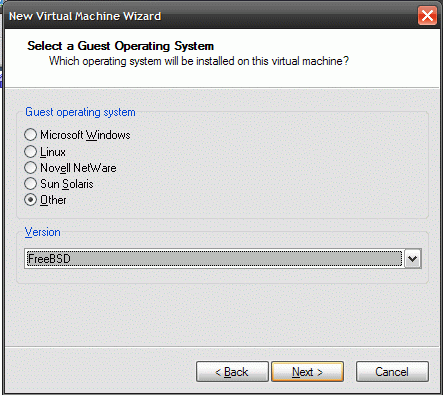
  • Select "Other->FreeBSD" on 'Select a Guest Operating System' page.


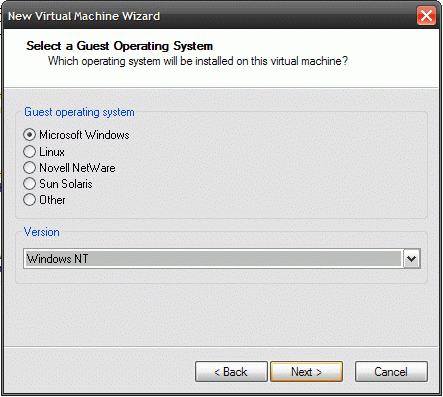
  • If you have Core Duo or Core 2 Duo processor select "Microsoft Window->Windows NT", otherwise you will not be able to boot from the ISO.


  • Click 'Next' & on 'Name the Virtual Machine' page set the machine name to whatever you like.
  • On 'Processor Configuration' page select Number of Processors to One. If you select Number of Processors to Two, your Mac OS installation may hang on the first boot screen. Once the installation is complete, you can change the number of processors to Two. It worked for me. Click 'Next'
  • Specify the amount of memory allocated to your virtual machine on the 'Memory for the Virtual Machine' page. Click 'Next'
  • Select "Use host-only networking" on 'Network Type' page. This should prevent Mac OS from registering itself when it starts first time.
  • Select appropriate adapter type on 'Select I/O Adapter Types' page & click 'Next'.
  • Select "Create a new virtual disk" on 'Select a Disk' page & click 'Next'.
  • Select Virtual Disk Type as IDE on 'Select a Disk Type' page & click 'Next'. If you don't select IDE, you will not be able to boot into Mac OS X. Installation will hang as well.
  • Specify atleast 6 GB of disk space. And select Allocate all disk space now on 'Specify Disk Capacity' page.
Step5:

Edit your vmware config. Open your virtual machine configuration file (.vmx extension) in any editor and add the following line at the end of the file.

paevm="true"

Step6:

Install Mac OSX
  • Start your virtual machine.
  • On boot prompt hit F8 to add boot options.
  • Type "-v" and hit enter. This will start installer in verbose mode.
  • Be patient, it may take a long before you see a installation GUI.
  • When you reach to a place where you need to select hard disk but nothing is listed, open "Tools->Disk Utility" from menu available on top of your screen. Select your Mac Os partition and click "partitions" from options available on right pane of the dialog. Create a journal partition to utilize the entire disk space. When you are done with this partitioning close the disk utility. Now, you should see your drive in the setup page. Select the partition and press "Next".
Step7:

Next, select custom installation and select all available patches. If you want to save disk space, remove unnecessary printer drivers from the installation list. Also remove unnecessary language options. Important: De-select wireless driver from custom patch list. Else your Mac will hang on the next boot with an error "no airport driver found".

Step8:

Have a nap. When you wake up, you will see you are done with installation. Voila! you have your Mac OS X ready to play with. Enjoy.

I am also trying to install Mac OS X 10.4.7 on physical partition under native mode. Will post my experience on it very soon here. Meanwhile, stay tuned.

Let me know if I can be of any help. Catch me on nightr0ver at yahoo dot com

Saturday, December 16, 2006

In the Line of Fire...

...And we say we work almost 24x7. We don't even have our personal life. BUT sitting in AC offices, chatting most of the time useless stuff with friends, we say we do deserve high pay packs.
--------------------------------------------------------
Vivek Pradhan was not a happy man. Even the plush comfort of the air-conditioned compartment of the Shatabdi Express could not cool his frayed nerves. He was the Project Manager and still not entitled to air travel. It was not the prestige he sought; he had tried to reason with the admin person, it was the savings in time. As PM, he had so many things to do. He opened his case and took out the laptop, determined to put the time to some good use.

"Are you from the software industry sir," the man beside him was staring appreciatively at the laptop.

Vivek glanced briefly and mumbled in affirmation, handling the laptop now with exaggerated care and importance as if it were an expensive car.

"You people have brought so much advancement to the country sir. Today everything is getting computerized."

"Thanks," smiled Vivek, turning around to give the man a look.

He always found it difficult to resist appreciation. The man was young and stocky like a sportsman. He looked simple and strangely out of place in that little lap of luxury like a small town boy in a prep school. He probably was a railway sportsman making the most of his free traveling
pass.

"You people always amaze me," the man continued. "You sit in an office and write something on a computer and it does so many big things outside."

Vivek smiled deprecatingly. Naivety demanded reasoning not anger. "It is not as simple as that my friend. It is not just a question of writing a few lines. There is a lot of process that goes behind it." For a moment, he was tempted to explain the entire Software Development Lifecycle but restrained himself to a single statement. "It is complex, very complex."

"It has to be. No wonder you people are so highly paid," came the reply.

This was not turning out as Vivek had thought. A hint of belligerence came into his so far affable, persuasive tone.

"Everyone just sees the money. No one sees the amount of hard work we have to put in. Indians have such a narrow concept of hard work. Just because we sit in an air-conditioned office does not mean our brows do not sweat. You exercise the muscle; we exercise the mind and believe me that is no-less taxing." He had the man where he wanted him and it was time to drive home the point.

"Let me give you an example. Take this train. The entire railway reservation system is computerized. You can book a train ticket between any two stations from any of the hundreds of computerized booking centres across the country. Thousands of transactions accessing a single database, at a time concurrency; data integrity, locking, data security. Do you understand the complexity in designing and coding such a system?"

The man was stuck with amazement, like a child at a planetarium. This was something big and beyond his imagination. "You design and code such things."

"I used to," Vivek paused for effect, "But now I am the Project Manager,"

"Oh!" sighed the man, as if the storm had passed over, "so your life is easy now."

It was like being told the fire was better than the frying pan. The man had to be given a feel of the heat.

"Oh come on, does life ever get easy as you go up the ladder. Responsibility only brings more work. Design and coding! That is the easier part. Now I do not do it, but I am responsible for it and believe me, that is far more stressful. My job is to get the work done in time and with the highest quality. To tell you about the pressures, there is the customer at one end always changing his requirements, the user wanting something else and your boss always expecting you to have finished it yesterday."

Vivek paused in his diatribe, his belligerence fading with self-realization. What he had said, was not merely the outburst of a wronged man, it was the truth. And one need not get angry while defending the truth. "My friend," he concluded triumphantly, "you don't know what it is to be in the line of fire."

The man sat back in his chair, his eyes closed as if in realization. When he spoke after sometime, it was with a calm certainty that surprised Vivek.

"I know sir, I know what it is to be in the line of fire," He was staring blankly as if no passenger, no train existed, just a vast expanse of time.

"There were 30 of us when we were ordered to capture Point 4875 in the cover of the night. The enemy was firing from the top. There was no knowing where the next bullet was going to come from and for whom. In the morning when we finally hoisted the Tricolour at the top, only 4 of us were alive."


"You are a..."

"I am Subedar Sushant from the 13 J&K Rifles on duty at Peak 4875 in Kargil. They tell me I have completed my term and can opt for a land assignment. But tell me sir, can one give up duty just because it makes life easier. On the dawn of that capture, one of my colleagues lay injured in the snow, open to enemy fire while we were hiding behind a bunker. It was my job to go and fetch that soldier to safety. But my captain refused me permission and went ahead himself. He said that the first pledge he had taken as a Gentleman Cadet was to put the safety and welfare of the nation foremost followed by the safety and welfare of the men he commanded. His own personal safety came last, always and every time. He was killed as he shielded that soldier into the bunker. Every morning now, as I stand guard I can see him taking all those bullets, which were actually meant for me. I know sir; I know what it is to be in the line of fire."

Vivek looked at him in disbelief not sure of his reply. Abruptly he switched off the laptop. It seemed trivial, even insulting to edit a word document in the presence of a man for whom valour and duty was a daily part of life; a valour and sense of duty which he had so far attributed only to epical heroes.

The train slowed down as it pulled into the station and Subedar Sushant picked up his bags to alight.

"It was nice meeting you sir."

Vivek fumbled with the handshake. This hand had climbed mountains, pressed the trigger, and hoisted the Tricolour. Suddenly as if by impulse, he stood at attention and his right hand went up in an impromptu salute. It was the least he felt he could do for the country.

PS: The incident he narrates during the capture of Peak 4875 is a true-life incident during the Kargil war. Capt. Batra sacrificed his life while trying to save one of the men he commanded, as victory was within sight. For this and his various other acts of bravery he was awarded the Param Vir Chakra the nation's highest military award.

LIVE HUMBLY, THERE ARE GREAT PEOPLE AROUND US, LET US LEARN!

Winners are
too busy to be sad,
too positive to be doubtful,
too optimistic to be fearful
and
too determined to be defeated!

Saturday, December 02, 2006

Books I read and do recommend to all security enthusiast:
  • Internetworking with TCP/IP (vol. 1-3) by Douglas Comer
  • Modern Operating System by Tanenbaum
  • Hacking Exposed by Joel Scambray, Stuart McClure, and George Kurtz
  • Hacking Exposed Web Application by Joel Scambray, Mike Shema, and Caleb Sima
  • Linux Hacking Exposed by Brian Hatch, James B. Lee, and George Kurtz
  • Hacking: The art of exploitation by Jon Erickson
  • Web Hacking: Attacks & Defense by Stuart McClure, Saumil Shah, and Shreeraj Shah
  • Hacknotes(tm) Linux and Unix security portable reference by Nitesh Dhanjani
  • The Shellcoder's Handbook: Discovering and Exploiting Security Holes by Jack Koziol, David Litchfield, Dave Aitel, Neel Mehta
  • Exploiting software: How to break code by Greg Hoglund and Gary McGraw
  • Reversing: secrets of reverse engineering by Eldad Eilam
  • Hacker Disassembling Uncovered by Kris Kaspersky
Note:
A very good friend of mine and a mentor of my early career told me once, "Learn and understand how networking is done, if you really want to get into hackers footstep".

Thursday, November 30, 2006

Well, first let me tell you who I am?

I am holding masters degree in computer application. Reverse engineering is my passion. Kinda involved in lots of Penetration testing & Ethical hacking exercises.

I have rich experience in exploring win32 undocumented APIs. I have low level programming experience in win32 environment. I also do NDIS driver development on win32 platforms.

Glassed effect graphics do attract me the most. And playing guitar is my favorite time pass. Electronics gadgets are my weaknesses. F1 is my favorite sport.

Want to know more? catch me on nightr0ver at yahoo dot com